These instructions will help you to remove and replace keyboards on various laptops. I will not be able to cover all models but you’ll get the idea. Steps for removing and replacing the keyboard are similar for most laptops.
If your keyboard is missing a key, it’s not necessary to replace the whole keyboard. You can fix it using this guide: how to fix keys on a laptop keyboard.
Warning!
- if your laptop is still covered by the manufacturer’s warranty, do not open the case or you can loose the warranty.
- always remove the battery and unplug the AC adapter before you open the laptop case.
- if you damage the keyboard connector on the motherboard you’ll have to replace the whole motherboard.
- proceed on your own risk.
Sony laptop
I took these pictures from a Sony Vaio PCG-K33 (model PCG-9S1L) notebook. Should be similar for some other Sony notebooks too.
In this post I explain how I test the LCD screen inverter board in a laptop computer.
The screen inverter failure is very similar to the backlight lamp failure. In both cases the screen gets very dark and the image on the screen becomes very faint, barely visible under a bright light.
If you suspect the inverter board failure, I know only one reliable way to test that. It’s either replacing the inverter board with a known good one and see if it works, or connecting a known good backlight lamp and see if your presumably bad inverter lights it up.
In most cases I go with the second method – testing the laptop with a known good backlight lamp. Why? Because backlight lamps are pretty much universal. The same backlight lamp will work with many different inverters as long as they have matching connectors. I’ll talk about these connectors later.

In this post I explain how I test the LCD screen inverter board in a laptop computer.
The screen inverter failure is very similar to the backlight lamp failure. In both cases the screen gets very dark and the image on the screen becomes very faint, barely visible under a bright light.
If you suspect the inverter board failure, I know only one reliable way to test that. It’s either replacing the inverter board with a known good one and see if it works, or connecting a known good backlight lamp and see if your presumably bad inverter lights it up.
In most cases I go with the second method – testing the laptop with a known good backlight lamp. Why? Because backlight lamps are pretty much universal. The same backlight lamp will work with many different inverters as long as they have matching connectors. I’ll talk about these connectors later.

This tutorial explains how you can install internal wireless card into an older laptop. I assume that your laptop is “wireless ready” which means it has a slot for the wireless card and equipped with wireless antennas, but missing the wireless card. Why did I make this tutorial for an older laptop? Because all new laptops are sold with the wireless card.

In this post I’ll explain how to troubleshoot a dead laptop and find the problem. The following troubleshooting tips are not model and brand specific, they should work for most laptops.
Let’s take a look at two different scenarios.
Example 1. The laptop is absolutely dead.
When you plug in the power adapter and press on the power button, there is no signs of life at all. The laptop will not make usual noises, LEDs will not light up, the fan will not spin, the screen is blank and black, etc… In short, the laptop is dead.
What you can do in this case?
1. Make sure the wall outlet is working and the laptop DC adapter is getting power from the outlet. Try another wall outlet.
2. Test the laptop DC power adapter, make sure the voltage output is correct. You can test the DC power adapter with a voltmeter.
3. Let’s say the DC adapter is fine and the adapter outputs correct voltage. In this case unplug the power adapter from the laptop, remove the battery, wait for 1-2 minutes, plug in the adapter and try turning on the laptop again.
OK, you tested the adapter and it’s bad. If you decide to replace the original DC adapter with a generic one, you’ll have to follow this rule:

This laptop has a power problem. The battery stops charging when I move the power cord on the DC adapter. When I start moving the cord left to right, the power LED light on the front goes on and off and the battery charge LED goes on and off too.

I removed the battery and tested the laptop again. The laptop starts fine from the DC adapter when the battery is removed, but as soon as I start moving the power cord the laptop shuts off. It looks like the laptop looses power immediately.
If you have a problem like that, most likely it’s related either to the power adapter or the DC-IN power jack.

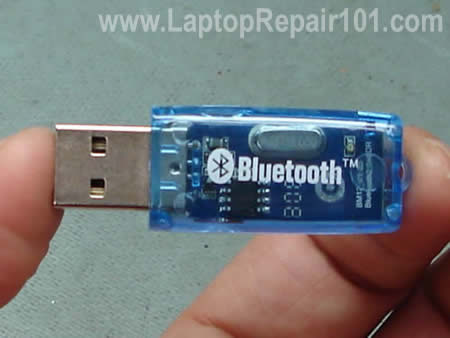
Here’s how I installed an external USB Bluetooth adapter INSIDE my laptop and made it internal. My laptop wasn’t Bluetooth ready, it didn’t have internal Bluetooth connector and antenna but I needed it in order to access the cell phone without running a cable.
USB Bluetooth adapter
My first option was using the external USB Bluetooth adapter as is but it wasn’t very convenient. I decided to find a way to install this adapter inside the laptop.

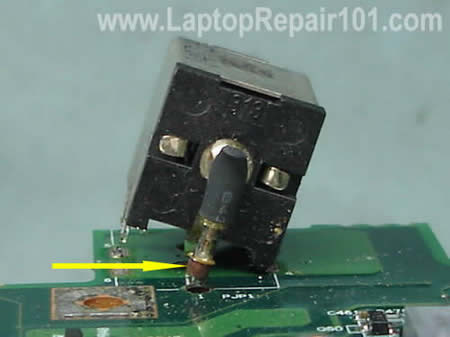
In order to replace the power jack in your laptop you’ll have to remove the jack from the motherboard as I explained in the previous post: Replacing DC power jack.
While removing the jack you can accidentally pull out the internal copper coating (I’ll call it a sleeve) from the inside of the “+” terminal as it shown on the picture below.
Damaged power jack connection

Here’s how you can fix, or to be precise, work around some hardware problem without taking apart the laptop.
1. Network port failure.
In most laptops the network port (aka RJ-45 port) is soldered directly to the motherboard. If for some reason the network port fails (I’m talking about hardware, not software failure), the whole motherboard has to be replaced.
Instead of replacing the motherboard, you can use a PCMCIA network card (aka LAN PC card). You plug this card into the available PC slot in your laptop and get a network port instead.

This guide explains how to fix a broken keyboard connector on a laptop motherboard. I do not claim that my instructions will work for any connector type in any laptop brand, but if I can help a few people, I can call my mission accomplished.
Let’s say the keyboard in your laptop stopped working properly and you decided to install a new keyboard yourself. You disassembled the laptop, removed the keyboard, tried to unlock the keyboard connector and… OHH! MAN!… a piece of the locking clip on the connector got broken!
What can you do? Unfortunately, you don’t have a lot of options. The keyboard connector is permanently soldered to the motherboard and cannot be replaced at home. If the connector was damaged, you’ll have to replace the whole motherboard, use the laptop with an external USB keyboard, or…. try the following trick.

This guide will explain how to repair a failed or loose DC power jack on a laptop computer yourself. Here’s my previous post related to DC power jack related issues.
Disclaimer: I’ve made these instructions only for people experienced with soldering and repairing computers. If you don’t feel comfortable doing this job, please do not open the laptop or you can permanently damage your computer. Take your laptop to a professional repair shop instead.
Use this repair guide at your own risk. :)

First of all, you’ll have to disassemble your laptop and remove the motherboard. Here you’ll find disassembly instructions for some major laptop brands such as IBM, Dell, HP, Compaq, Toshiba. If your laptop is not on the list, you’ll have to figure out yourself how to take it apart.

For this repair you’ll need the following tools.

1. Soldering iron or soldering station. I use Weller WES51 soldering station and for this job I set temperature to about 800-850°F.
2. I use high-tech rosin core silver-bearing solder from Radioshack with diameter 0.022″ ( Catalog #: 64-013 ). I think standard rosin core solder will work just fine.
3. Desoldering pump for removing solder around component leads. I use Edsyn Soldapullt pump, model DS 017.
4. 99% isopropyl alcohol and tooth brash for cleaning the motherboard from flux.
5. A new DC power jack, you can find a cheap one here.

Is it possible to fix laptop memory slot failure with a guitar pick? Yes, it is. You will not fix the memory slot itself, but you can work around the problem. :)
Today I received a Toshiba Satellite Pro 4600 laptop with the following complaint:
The laptop starts and works properly, but recognizes only one of the two memory modules installed. The laptop has two 256MB RAM modules installed, but registers only 256MB.
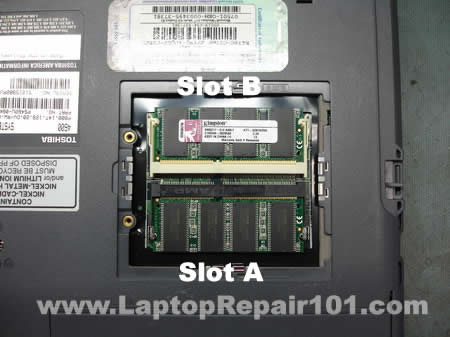
Two memory modules
First of all, I removed the memory cover to find out if both memory modules are installed correctly. The laptop had two 256MB Kingston modules installed and they were seated properly.

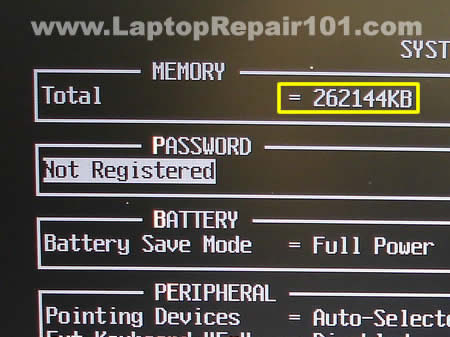
256MB memory detected


When I started the laptop and entered the BIOS setup menu, I found that only one of the two memory modules is detected and the laptop registers only 256MB (262144KB) of RAM instead of 512MB (524288KB).
Just a side note. In the computer world 1MB=1024KB. That’s why 256MB=262144KB and 512MB=524288KB.
I tried reseating both memory modules but it didn’t help.
After that I tried installing both memory modules in both memory slots one by one and here’s what I found. The laptop worked absolutely fine when both memory modules were installed into the slot A, but failed to boot with both memory modules installed into the slot B.
Apparently, there is nothing wrong with the memory modules and the laptop has a faulty memory slot B. The memory slot is permanently soldered on the motherboard. If one of the slots fails you’ll have to replace the whole motherboard or use the laptop with only one working slot.
Buying a new motherboard for this older laptop wouldn’t make any sense because it’s too expensive, but the laptop is still in a good working condition except the faulty memory slot B, so I continued playing with that trying to find the solution.
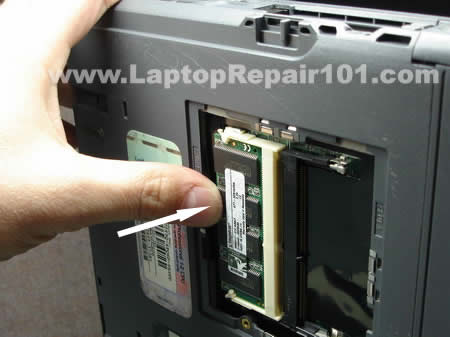
press on memory module
I noticed that the laptop start normally with the memory module installed into the faulty slot if I slightly press on the module with my thumb. And this gave me an idea.
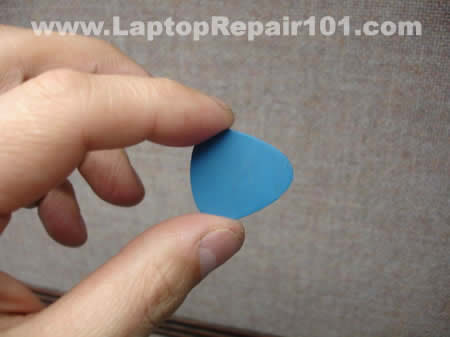
guitar pick
This guitar pick is going to fix my laptop. :)
install guitar pick
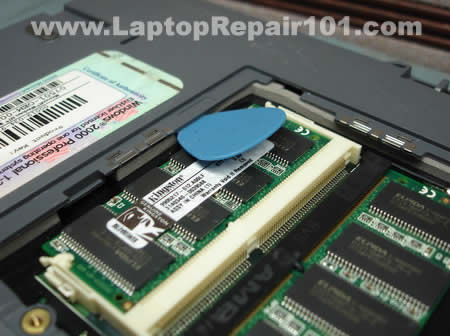
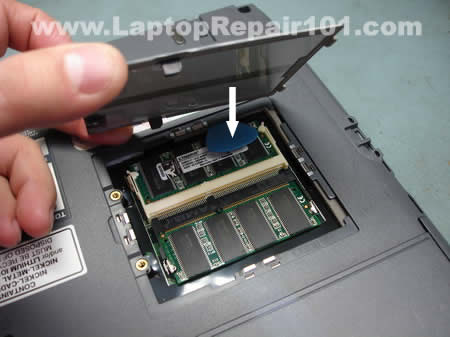
I installed both RAM modules back into the slots and then placed the guitar pick over the module in the slot B as it shown on the picture.
close memory door
I thought if I close the RAM door it will press on the guitar pick/memory module and it will have the same effect as pressing on the module with my thumb. And it worked!
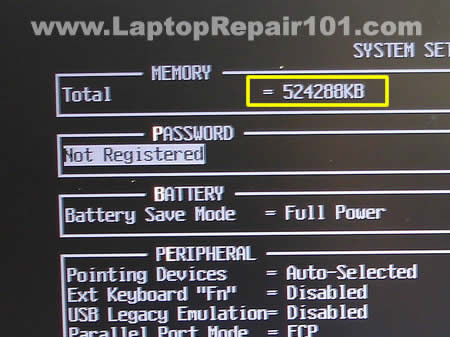
512MB memory detected
Both memory modules were detected properly and the laptop registered all 512MB. After “the fix” I tested memory with Memtest86+ and the laptop passed the test.
I wouldn’t call it the best solution for fixing a faulty memory slot but in some cases it will work.
By the way, I didn’t charge the customer for this “repair”, he knows what is going on and how I “fixed” his problem.